


If you’ve ever hosted a wedding, party, offsite or festival, you know the pain: hundreds of great moments, almost none of them in one place. People promise to send photos “tomorrow”, WhatsApp groups get messy, AirDrop only works for a few, and iPhone Shared Albums leave Android guests behind.
🎯 What a shared event album actually is
It’s a private, time-boxed gallery tied to your event. Guests scan a QR code, add their name, and upload a few photos or short clips. You (the organiser) can approve, hide or reveal content. During the event, you can even turn uploads into a live slideshow on any screen.
🔗 Why QR beats every other method at events
Messaging groups get spammy and exclude people without your number. AirDrop is Apple-only and proximity-limited. Links to cloud folders work for power users, not for a crowd. A QR code on a poster or the big screen is universal and takes two taps to join – that’s why participation skyrockets. QR + web app works the same on iOS and Android.
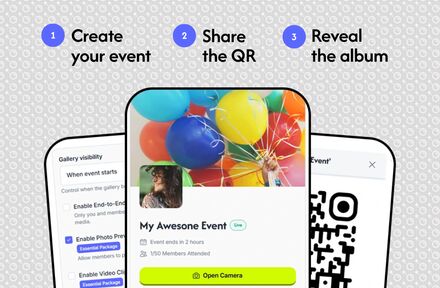
🪄 How to run it in three simple steps
1. Create your event in Say Cheese and set sensible limits (e.g. 8 photos per guest).
2. Share the QR code: print one A4 poster, put it on the door or display it on the venue screen.
3. Choose your reveal style – curate a live wall during the event or keep uploads private and publish the full album afterwards.
🔒 Privacy and control, not a public dump
You decide what’s visible and when. Keep the album private during the ceremony, reveal highlights during the reception, and publish the full set the next day. You can remove any image, manage visibility, close access when you’re done. Guests can download photos, organisers can export everything.
🎥 Live slideshow: turn event photos into a moment
The fastest way to engage a room is to show them on the screen. With Say Cheese you approve uploads quickly and the slideshow updates instantly. Use it for a wedding “first-dance reveal”, a company offsite recap between sessions, or a party “best shot at midnight” moment.
💻 Hardware: what you actually need
For a live screen/slideshow: any laptop with a modern browser and HDMI, connected to a TV/projector or venue LED. That’s it. If you show short clips with sound, route HDMI audio to the PA or use the TV’s speakers.
If you’re only collecting & sharing the gallery: nothing extra. Guests scan the QR on a printed poster or from your phone, upload from their own phones, and you moderate from yours. After the event, share the album link – no cables, no laptop needed. Nice-to-haves: a second printed QR, a phone hotspot if Wi-Fi is flaky, and a power strip near the display.
🎤 Run-of-show example for MC/DJ
“Everyone, scan the QR on the screen. Add your name and drop your 3 best shots from the last hour. We’ll show highlights in a few minutes – and yes, there’s a small prize for the most creative photo.”
⚠️ Common pitfalls and how to avoid them
Set a per-guest limit to keep moderation easy. Assign one “slideshow captain” to approve uploads during key program moments. Keep the QR visible in several places so latecomers don’t miss it. If Wi-Fi is shaky, ask guests to use mobile data – photos are compressed to event-friendly sizes.
💡 Use cases you can launch today
Weddings, birthday/hen/stag parties, company offsites, conferences, school & sports days – anywhere you want shared albums and event photos without herding guests afterwards. For more ideas and concrete examples of how others are using Say Cheese, visit:
https://saycheese.events/use-cases
✅ Ready to see every angle of your event?
Turn your guests into your photo team. Put one QR code on a poster or screen, let people contribute their best moments from different angles, and create a live wall that brings the room to life. Tomorrow, share one clean gallery instead of chasing messages across five apps.